Last updated: July 17, 2026
Common PDF Editing Mistakes That Make a Document Look Unprofessional
PDF editing often fails in predictable ways. The user changes a visible word without checking whether the page is a scan. A signature is added as an oversized image. A black box is used as “redaction.” A form is uploaded without reopening the downloaded copy. These mistakes can make an otherwise professional document look careless or, in the worst cases, leak private information.
1. Editing a scan as if it were source text
A scanned PDF is usually a page image. Adding text on top can be useful for a flat form, but it is not the same as rewriting the original page. Before editing, test selection, search, zoom behavior, and copy/paste output. If the page is image-only, use OCR, a clean source document, or overlays with careful visual review.
2. Rewriting too much text in a final-form document
PDFs are not word-processing files. Replacing a short typo is very different from rewriting a paragraph. Broad rewrites can break line spacing, font matching, table alignment, and pagination. If the change is substantial, go back to the original Word, Docs, spreadsheet, or design file. Use PDF editing for small, controlled changes.
3. Ignoring font substitution
Many PDFs embed only part of a font. When you add characters that were not in the original file, the editor may substitute another font. The result can look slightly off or push text outside its original area. Check edited words at high zoom. Watch for changed letter widths, baseline jumps, and inconsistent punctuation.
4. Filling flat forms without checking alignment
Flat forms have no real fields. Typed responses are overlays. That is fine for many everyday forms, but the final result should be reviewed field by field. Check that text is inside the blank, checkmarks are centered, dates use the expected format, and the signature does not cover instructions.
5. Treating a visual signature as a certified digital signature
A visual signature mark is often acceptable for informal approvals, school forms, simple acknowledgments, and internal paperwork. It is not the same as a certificate-backed digital signature with identity validation and tamper evidence. If a contract, portal, or agency requires a certified digital signature, use the required signing system.
6. Using black boxes as redaction
Covering text does not necessarily remove it. The hidden text may remain searchable, selectable, or recoverable. Use real redaction for private identifiers, account numbers, medical information, legal material, and client data. After redaction, search the final file and inspect metadata, annotations, and attachments.
7. Forgetting metadata and file names
A professional-looking page can still carry an unprofessional file name or metadata title. Before sharing a resume, contract, invoice, or proposal, check the file name, document title, author, comments, and attachments. Remove old client names, internal draft labels, and private notes that the recipient does not need.
8. Not reopening the exported PDF
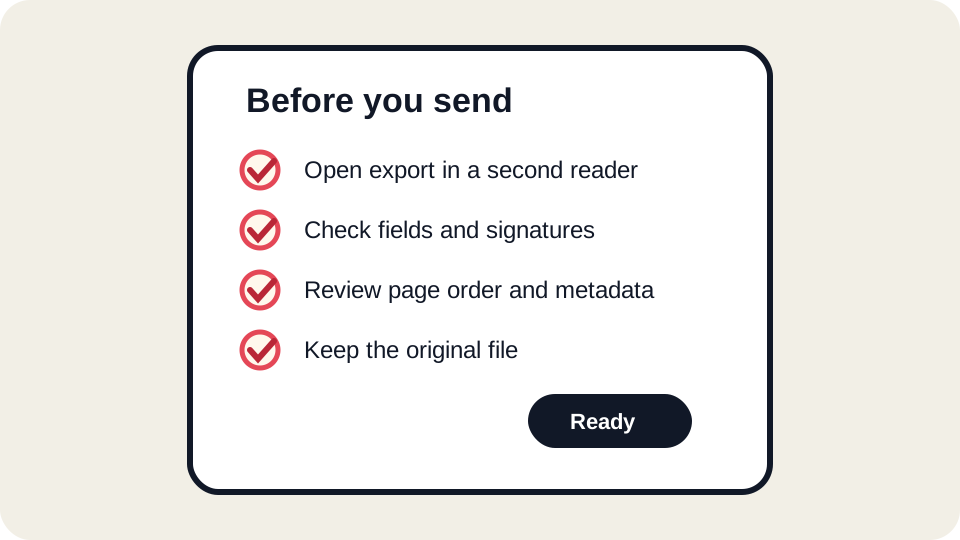
The most important review step is opening the downloaded export. Do not rely only on the preview inside the editor. Reopen the actual file, preferably in a second viewer. Check page count, page order, edited areas, signatures, and form fields. Search for key terms and zoom around important changes.
Common mistake checklist
| Mistake | Symptom | Fix |
|---|---|---|
| Scan treated as text | Text cannot be selected or copies incorrectly | Use OCR, source file, or visual overlays. |
| Long replacement text | Words overlap or clip | Shorten the edit or regenerate from source. |
| Wrong signature type | Recipient rejects the file | Use certified signing when required. |
| Unsafe redaction | Hidden text remains searchable | Use true redaction and verify removal. |
| Skipped export review | File looks different after submission | Open the downloaded PDF before sending. |
How to make edits look professional
- Work from a copy of the original.
- Make the smallest change that solves the problem.
- Match surrounding font size and baseline as closely as possible.
- Avoid covering nearby lines, labels, or borders.
- Review at high zoom and normal zoom.
- Open the export in a second viewer.
- Use the recipient’s required workflow when the document is official.
Where JUST FREE PDF fits
JUST FREE PDF is useful for ordinary, reviewable PDF tasks: small text corrections, flat-form entries, simple visual signatures, page organization, and export inspection. It is not a replacement for professional layout tools, official signing systems, true redaction software, or regulated document workflows. Use it when the task is appropriate and the final file can be checked before sharing.
FAQ
What is the most common PDF editing mistake?
Skipping export review. Many problems are visible only after the file is downloaded and opened outside the editor.
Why does my edit look slightly different from the original?
The PDF may use a subset font or custom encoding. The editor may need to substitute a font or draw the replacement differently.
Should I edit the PDF or recreate it?
For small corrections, editing the PDF can be efficient. For major rewriting, recreate the PDF from the original source document.