Last updated: July 17, 2026
Editable Text PDF or Scanned PDF? How to Tell
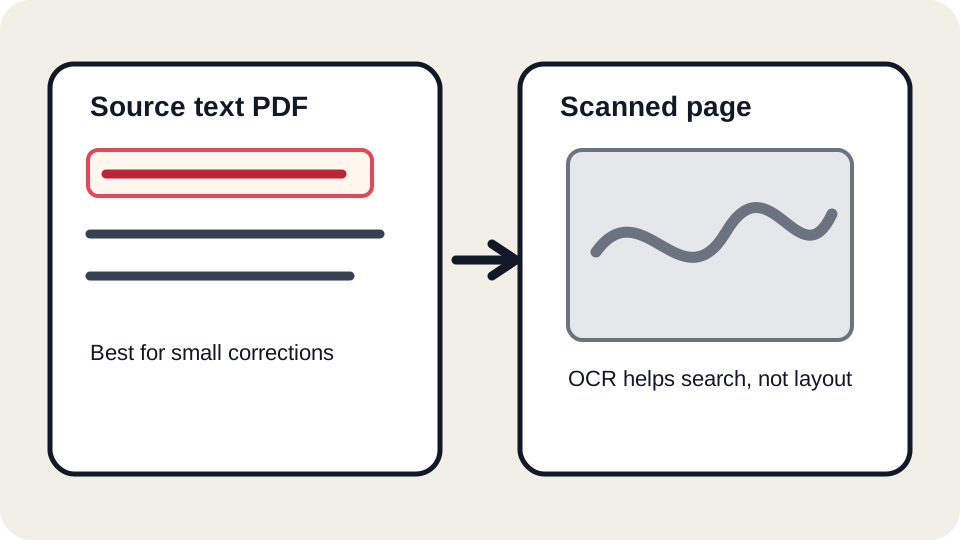
Before using any PDF editor, first decide what kind of page you are looking at. A PDF can look like a normal typed document while actually being a photograph, a scan, a flattened form, or an image with an invisible OCR layer on top. Those files need different handling. Many broken exports, strange text shifts, and failed form submissions start with the same mistake: treating every visible word as editable source text.
The five-minute inspection workflow
- Select one word, not a whole line. Click near a single word and drag slowly. If the exact word highlights, the page probably has text objects. If a large rectangular area or the whole page highlights, you may be selecting an image layer instead.
- Use search for a word that is clearly visible. Search for a name, invoice number, or uncommon phrase. A match indicates real text or OCR text, but it does not prove that the text can be safely rewritten.
- Copy a short line into a plain text editor. Clean copied text usually means the PDF has usable text mapping. Boxes, missing spaces, reversed characters, or unrelated symbols suggest custom encoding, a damaged OCR layer, or subset font mapping.
- Zoom to 400 percent. Real text remains sharp because it is drawn as vectors or font glyphs. Scans show pixels, blur, paper texture, dust, or compression blocks around the letters.
- Open the same file in a second viewer. Test in the browser and in another PDF viewer. If selection boxes or search results differ, treat the file as fragile and review exports carefully.
How to classify the result
| What you see | Likely file type | Editing recommendation |
|---|---|---|
| Words select cleanly, copy correctly, and search works | Text-object PDF | Small corrections may be reasonable. Export and review in a second viewer. |
| Search works, but selection is offset from the visible letters | Scan with OCR layer | Do not assume the visible image can be rewritten. Use overlays or an OCR-aware workflow. |
| No words can be selected and zoom shows pixels | Image-only scan | Use OCR, the original source file, or a tool built for image editing. |
| Text selects but copied output is garbled | Custom encoding or subset font issue | Avoid broad rewrites. Make only minimal edits and compare export output. |
| Letters look sharp but act like artwork | Outlined/vector text | Use the original design file when possible. Text editing may not be available. |
Why an OCR layer is easy to misread
OCR can make a scanned page searchable without making it truly editable. The visible page remains a picture, while an invisible text layer sits on top. That layer may be slightly misaligned, may contain recognition errors, and may not preserve the original font. If you try to replace words on a scanned page, you may only add new text over the picture. That can be acceptable for a quick note, but it is not the same as editing the original document.
Look for symptoms such as search highlighting a word a few pixels away from the letters, copied text containing unexpected line breaks, or a viewer selecting vertical slices instead of letters. Those are signs that the PDF needs a different workflow. For high-value files, use the original Word, Docs, spreadsheet, or design file rather than forcing a scan into a text editor.
When JUST FREE PDF is a reasonable fit
Use JUST FREE PDF for reviewable edits on ordinary text PDFs, simple overlays on flat forms, and visual annotations where you can inspect the downloaded file before sending it. The editor is designed for practical document tasks, not for promising that every PDF can be rewritten. If the page is a clean text-object PDF, make the smallest change that solves the problem, export, and compare the result against the original.
If the page is scanned, you can still add visible text or a signature mark, but you should not call that true source-text editing. For government forms, legal documents, medical records, tax files, and official school portals, check whether the recipient requires a particular format or a certified workflow.
Common misdiagnoses
- “I can search it, so I can edit it.” Search only proves that text data exists somewhere in the file. It does not prove the visible letters are editable.
- “The scan is sharp, so it is text.” A high-resolution scan can look clean while still being a picture.
- “Copy and paste worked once, so the file is safe.” Some PDFs copy headings correctly but fail on body text, bullets, tables, or non-Latin characters.
- “The online preview looked right, so the export is right.” Always open the downloaded PDF in a second viewer before submitting it.
Practical decision rule
If the edit changes meaning, money, identity, dates, terms, or legal obligations, do not rely on a single preview. Inspect the page type, make a small test edit, export a copy, search and zoom the exported file, and confirm that the recipient will accept the result. When the file behaves like a scan or uses unusual fonts, the safest route is usually to go back to the source document or use a specialist OCR or desktop workflow.
FAQ
Can a scanned PDF ever become editable?
Yes, but it requires OCR and review. OCR creates recognized text from the image. It can be very useful, but it may introduce errors and does not automatically recreate the original layout perfectly.
What should I do if only part of the page is selectable?
Treat the document as mixed. Some areas may be real text while stamps, signatures, charts, or scanned inserts are images. Test each area you plan to edit.
Should I delete the original after editing?
No. Keep the original until the recipient has accepted the edited PDF. It is the best reference if the export shifts, a portal rejects the file, or a later correction is needed.