Last updated: July 17, 2026
Why Edited PDF Text Shifts After Export and How to Check It
A PDF can look correct while you are editing it and still shift after export. The shift may be tiny, such as one character spacing differently, or obvious, such as a line wrapping into a signature block. This happens because PDF files are final-form documents. They store drawing instructions, font references, coordinates, and sometimes text fragments, not the flexible paragraph model that a word processor uses.
Why PDF text is not like word-processing text
In a word processor, a paragraph knows how to reflow. It has margins, styles, line spacing, and editable runs of text. In many PDFs, each word or fragment is positioned at a coordinate. The file may not contain a normal paragraph at all. When you replace a word, the editor has to preserve the look using the font data, layout boxes, and available space in the PDF. If one of those assumptions is wrong, the exported result can move.
Font subsets are a common cause. A PDF may include only the characters used in the original document, not the full font. If you add a new character that is not embedded, the editor may substitute another font. The substitute can have different widths, ascenders, descenders, and baseline behavior. Even if the difference is small, a narrow form field or table cell can overflow.
Where shifts usually appear
- Names and addresses. Long replacement names may exceed the original text area, especially in forms, invoices, and resumes.
- Dates and amounts. Changing “9” to “10” or adding a comma can push later characters into nearby labels.
- Bulleted lists. PDF bullets are often separate drawing objects. Editing text beside them can break alignment.
- Tables. Cells may be drawn with lines, not real table structure. Text can collide with borders after export.
- Headers and footers. Small font changes can make page numbers or document IDs look inconsistent.
- Rotated or vertical text. Coordinate systems and baselines are harder to preserve in rotated regions.
Export review checklist
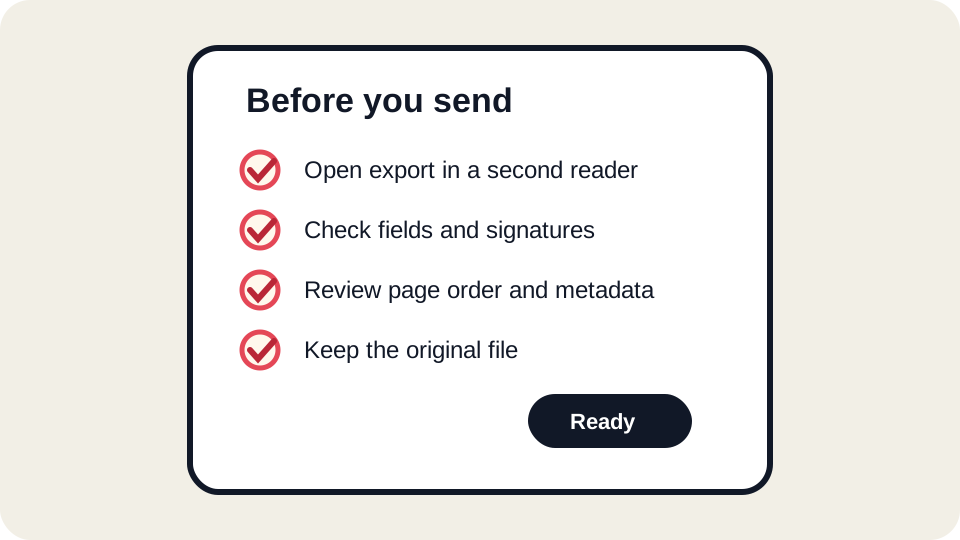
- Save a copy, not over the only original. Keep the source PDF until the recipient accepts the file.
- Open the export in a second PDF viewer. Do not trust only the editor preview. Use a browser viewer and a desktop or mobile viewer when possible.
- Zoom to 200–400 percent around each edit. Check baseline, spacing, clipping, and overlap with nearby text.
- Search for edited words. Search confirms whether replacement text is represented as text, although overlays may behave differently.
- Print to PDF or preview print output if the recipient will print it. Some issues appear only in print rendering.
- Check page count and page order. Layout changes can accidentally hide a page, duplicate a page, or change page rotation.
- Reopen the file after download. Make sure you are reviewing the actual downloaded export, not a cached preview.
How to reduce shift risk before editing
Make smaller edits. Replacing a single typo is safer than rewriting a paragraph. Match the original length where possible. Avoid changing fonts unless the design is not important. If a form field is too narrow, ask the recipient whether a shorter answer is acceptable instead of squeezing text until it becomes unreadable. For official documents, the cleanest approach is often to regenerate the PDF from the original source file.
When editing invoices, resumes, contracts, or school forms, identify the areas where alignment matters most: totals, signatures, dates, checkboxes, and contact information. Review those areas first. A page can pass a casual glance while still failing because an amount shifted by two pixels or a checkbox label is covered by an overlay.
When overlays are better than text replacement
Sometimes an overlay is the honest solution. If a PDF uses outlined text, scanned content, or a damaged font map, replacing source text may be unreliable. Adding a clearly placed overlay, such as a typed response in a blank form area, may be safer. The tradeoff is that the overlay might not behave like original text when searched or selected. That is acceptable for many visual forms but not for all archival, legal, or accessibility requirements.
Recipient-specific checks
| Recipient | Extra check | Reason |
|---|---|---|
| Government portal | Confirm file size, page count, and accepted PDF type | Portals may reject flattened, encrypted, or oversized files. |
| School or employer | Review names, dates, and signatures on mobile | Reviewers may open the file on phones or tablets. |
| Client or vendor | Check invoice totals and line-item alignment | Minor shifts can make financial documents look unprofessional. |
| Legal counterparty | Use the requested signing or document workflow | A visual edit may not satisfy formal requirements. |
How JUST FREE PDF should be used for shifted-text risk
Use the editor for small, reviewable changes and then treat the export review as part of the job. If the export does not match the preview, do not keep stacking edits on the same copy. Go back to the original, reduce the change, or use the source document. If the file contains complex columns, subset fonts, scanned sections, or protected content, assume it needs extra verification.
FAQ
Why does the browser preview differ from another viewer?
PDF viewers use different rendering engines, font fallback rules, and form-handling behavior. A reliable file should look acceptable in more than one viewer.
Can I prevent all shifts?
No editor can guarantee that for every PDF. You can reduce risk by making small edits, preserving original fonts, and checking the exported file carefully.
What is the safest fix for a heavily shifted file?
Use the original source document when available. If the PDF came from Word, Google Docs, a spreadsheet, or a design tool, regenerate it there instead of forcing a complex PDF edit.