Last updated: July 17, 2026
Portal PDF Submission Checklist for Forms, Schools, Employers, and Agencies
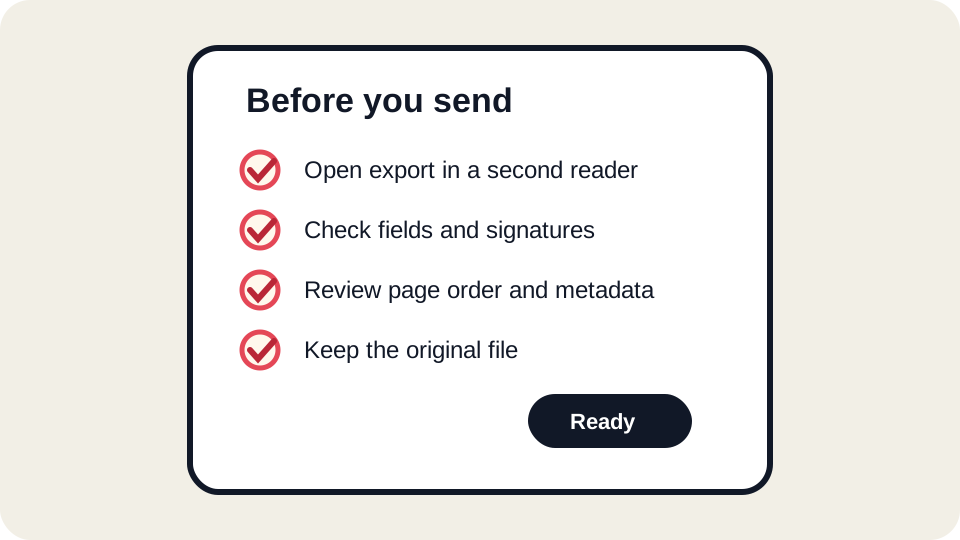
Many PDF problems are discovered too late: after a portal rejects the file, after a reviewer says the signature is missing, or after a form is submitted with clipped text. A submission portal is not a general PDF editor. It may enforce file size, page count, form-field, encryption, naming, and signature rules. Use this checklist before uploading any edited PDF to a government agency, school, employer, bank, insurance company, landlord, or client system.
1. Read the portal instructions before editing
Start with the portal requirements, not the editor. Look for accepted file types, maximum file size, password restrictions, whether electronic signatures are accepted, and whether the site wants a specific original form. Some portals reject flattened PDFs. Others reject interactive forms. Some require all pages even if a page seems blank. Editing first and reading the rules later often creates avoidable rework.
2. Confirm the PDF is the right document
- Check the form version date, agency name, employer name, or document ID.
- Confirm that no page is missing from the original.
- Keep an untouched copy of the original in case the portal rejects the edited version.
- If the form came from a link inside the portal, download it again before starting a major submission.
3. Check field completion and visual alignment
Review each completed field at normal zoom and at 200 percent. Long names, addresses, and explanations often look acceptable in the editor but clip after export. Checkboxes should appear inside their boxes, not beside them. Signatures should fit inside the signature area without covering dates, printed names, or certification language.
| Area | What to check | Why it matters |
|---|---|---|
| Identity fields | Name spelling, ID numbers, email, phone, address | Small mistakes can make the submission unmatchable. |
| Dates | Format and consistency | Portals may validate date format or reviewers may reject ambiguity. |
| Attachments | Required supporting documents and page count | Missing supporting pages often cause delays. |
| Signature | Accepted signature type and placement | A visual mark is not always a certified digital signature. |
| Totals or amounts | Decimal places, currency, and line alignment | Financial documents are sensitive to visual errors. |
4. Export and reopen the downloaded file
The file that matters is the one you upload, not the in-editor preview. After export, download the PDF, close the editor preview, and open the downloaded copy in at least one separate viewer. Search for key names or numbers. Zoom around edited areas. Confirm page order and page rotation. If the portal will be used on mobile, also open the file on a phone or tablet when possible.
5. Check file size and restrictions
Portals often reject files that are too large, encrypted, password protected, or malformed. Visual signatures, scanned pages, and images can increase file size. If the portal lists a size limit, check the actual downloaded PDF before upload. Do not assume that a short document is small. A two-page scan can be much larger than a twenty-page text PDF.
6. Avoid unsafe redaction and hidden data mistakes
If you need to remove private information before uploading, do not simply draw a black rectangle over text. Covered text can still remain underneath. Use a real redaction workflow or produce a version that never includes the information. Also check file names, metadata, comments, and attachments. A resume named with an old employer, a contract with internal comments, or a PDF containing hidden attachments can reveal more than the visible page.
7. Know when not to use a general online editor
Use the portal’s official workflow when the form has certified signing requirements, dynamic XFA fields, payment authorization, notarization, regulated medical or legal content, or a warning telling users to open it in a specific application. A browser editor can be convenient for ordinary documents, but it should not override explicit submission instructions.
Recommended workflow with JUST FREE PDF
- Download the original PDF and store an untouched copy.
- Inspect whether it is an AcroForm, flat form, or scan.
- Complete only the required fields and avoid unnecessary layout changes.
- Export the file and reopen the downloaded copy.
- Check file size, page count, signature appearance, and metadata.
- Upload only after the final downloaded copy passes review.
Common portal rejection messages
If a portal says the file is invalid, do not immediately rebuild the whole document. First check whether the upload limit was exceeded, whether the filename contains unsupported characters, whether the PDF is password protected, and whether the form was flattened when the portal expected interactive fields. If the portal displays a preview, compare that preview with your downloaded file. A portal preview that drops a signature or field value is a warning sign even if the upload technically succeeds.
When possible, save screenshots of the portal confirmation and keep the submitted PDF together. If a later reviewer claims the file was incomplete, the confirmation and the exact submitted copy are your best record.
FAQ
Why does a portal reject a PDF that opens fine on my computer?
The portal may validate different properties than a viewer does: file size, encryption, form type, page count, embedded scripts, or signature status.
Should I rename the PDF before upload?
Yes, use a neutral and clear file name that matches the portal instructions. Avoid names that reveal internal notes, previous employers, or private identifiers unless required.
What should I keep after submitting?
Keep the original PDF, the submitted PDF, and any portal confirmation receipt until the matter is fully resolved.