Last updated: July 17, 2026
PDF Export Review Checklist for Important Documents
The most important part of PDF editing happens after you click download. An export can look correct in the editor and still reveal a missing field, shifted line, hidden old text, wrong page order, or viewer-specific issue. Use this checklist before sending edited PDFs to schools, clients, portals, banks, or internal teams.
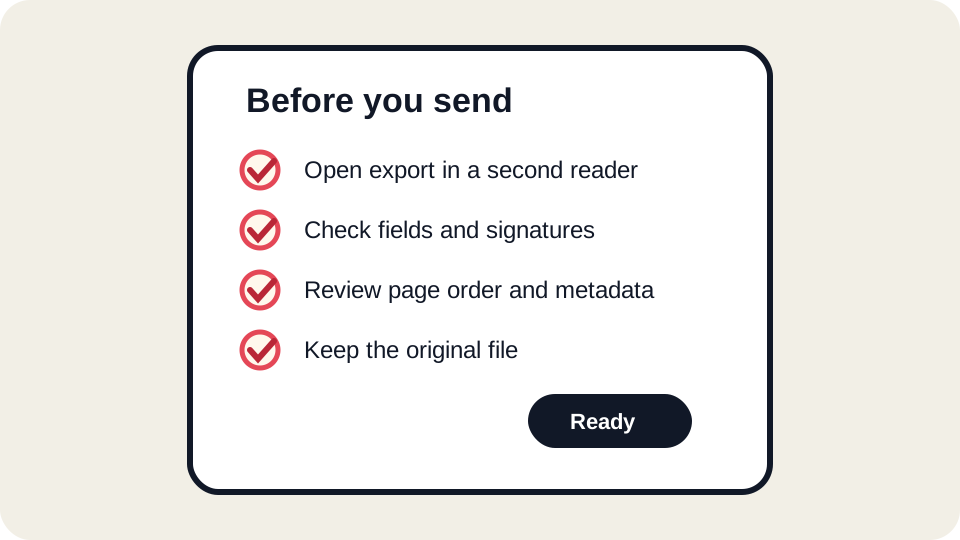
Before you download
- Finish text edits before adding signatures or final dates.
- Check every page that changed, not only the edited line.
- Look for overlaps around tables, list numbers, stamps, and margins.
- Confirm that form fields are filled and checkboxes are visible.
- Keep the original file and use a clear edited-copy filename.
After you download
- Open the exported PDF outside the editor.
- Scroll from first page to last page.
- Search for the old and new text if you changed wording.
- Check file size and page count.
- Zoom in on signatures, totals, dates, and tables.
Cross-reader review
Different PDF readers can render forms, fonts, and annotations differently. For important documents, open the export in at least one second viewer. On macOS, Apple Preview and Adobe Acrobat Reader often show different edge cases. In a browser workflow, Chrome or Edge can be useful but should not be the only check for formal submissions.
Forms and flattening
Some form entries are stored as interactive fields. Others are visual overlays. If a recipient says a form appears blank, the field appearance may not have been saved in the way their viewer expects. When possible, test the exported file in the same reader or portal the recipient uses. If a document must be flattened, use a workflow that the recipient accepts.
Signature review
Simple visual signatures must be visible, correctly placed, and not covering nearby labels. Certified digital signatures are different: changing a signed PDF can break the signature status. If you need legal validity, an audit trail, or tamper evidence, use a dedicated signing system.
Metadata and file name review
The file name, PDF title, author field, comments, attachments, and creator metadata can reveal information. Do not send a file named with internal notes, client codes, or private draft labels unless that is intentional. Review the metadata guide for sensitive documents.
Submission-specific checklist
| Recipient | Extra checks |
|---|---|
| School or university | Page order, signatures, date fields, file size limit. |
| Bank or insurance portal | Names, account numbers, form flattening, portal preview. |
| Client or vendor | Invoice totals, PO numbers, attachments, branding. |
| Government system | Use the official instructions; some systems reject modified PDFs. |
Do not skip a final visual pass
Automated checks cannot understand every document. A human pass catches most real problems: a line that shifted, a label that disappeared, a signature that moved, or an appendix that is now out of order. This is especially important when the edited PDF will be archived.
What our current test library checks
The public result file records page count, extracted text, fields, metadata, file hashes, and whether a synthetic redaction target remains extractable. It does not replace a second-viewer check. Use the published test methodology and inspect your downloaded file manually.
Do not send an export that shows repair warnings, blank fields, shifted text, wrong page order, hidden old content, or a signature workflow the recipient does not accept.
FAQ
Why does my export look different in another reader?
Readers vary in font fallback, annotation display, and form appearance handling.
Should I print a test page?
Yes when the document will be printed, mailed, or scanned again.
Can I rely on browser preview?
Browser preview is useful but not enough for high-stakes submissions.
What old text should I search for?
Search for words or numbers you replaced, especially in redaction or correction workflows.
Open the JUST FREE PDF editor
Start from the tool when your document needs a small, reviewable change. Keep an original copy, test the exported PDF in a second reader, and use the related guides when a file is scanned, protected, or legally sensitive.
Keep a simple review record
For important submissions, write down the final filename, page count, date submitted, and recipient portal or email address. This small record helps if a recipient later says the file was incomplete or unreadable. Do not store unnecessary sensitive details in the note; the goal is to track the submission workflow, not duplicate the document content.