Last updated: July 17, 2026
Redact PDF Text Safely: Deleting Text vs Covering Text
Redaction is one of the riskiest PDF workflows. Drawing a black box over text is not true redaction if the original text can still be copied, searched, extracted, or recovered from another layer. This guide explains when JUST FREE PDF is appropriate and when you should use a dedicated redaction tool.
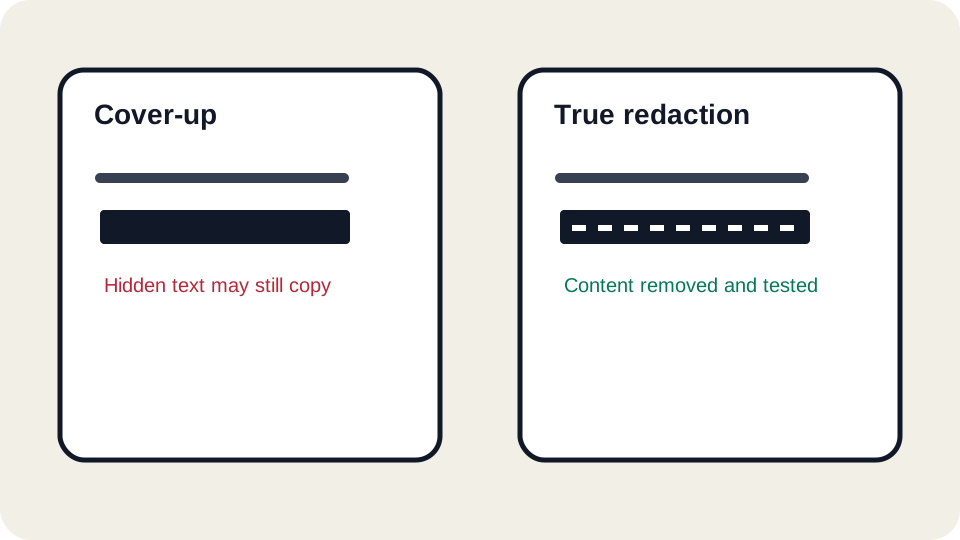
Cover-up is not redaction
A visual rectangle can hide text from casual viewing, but the hidden text may still exist underneath. Someone may select it, copy it, search for it, or extract it with a PDF tool. The same risk applies to white boxes, image overlays, and text pasted on top of old text.
True redaction removes content
True redaction removes the sensitive content from the PDF structure and then usually regenerates the visible page. It should remove text objects, OCR text, annotations, comments, and sometimes metadata. It should also be tested by searching and copying after export.
Common leak paths
- Copy and paste reveals covered text.
- Search finds a hidden name or number.
- OCR text remains behind a scanned image.
- Comments or annotations include the sensitive phrase.
- Metadata or file names reveal the same information.
- A previous version remains in a cloud folder or email thread.
When JUST FREE PDF can help
JUST FREE PDF can help you review a document, make ordinary edits, and understand where sensitive content appears. It may be useful for preparing a draft or adding a visible note. It should not be treated as an enterprise redaction system for confidential, legal, medical, financial, or government documents unless you can verify that the content is truly removed.
Safer redaction workflow
- Identify every sensitive item, including repeated names and numbers.
- Use a true redaction tool when the content must not be recoverable.
- Apply redactions and save a new file.
- Search the exported PDF for the hidden terms.
- Try copying text from the redacted area.
- Inspect metadata and attachments before sharing.
Scanned pages and OCR layers
A scanned page can look safer because it is an image, but OCR may add a hidden text layer. If you cover a name on the image but forget the OCR layer, search may still find it. For scanned pages, test both visual appearance and searchable text.
When not to use a general editor
Do not use a general editor for court records, medical files, employee records, bank statements, identity documents, or legal discovery unless your organization has approved that workflow. Redaction mistakes can be serious and hard to undo once the file is shared.
Verification checklist
- Search for every redacted word, number, and abbreviation.
- Copy text from the redacted area and paste it into a plain-text editor.
- Check comments, annotations, attachments, and metadata.
- Open the file in a different PDF reader.
- Keep the unredacted original in a secure location and share only the verified copy.
FAQ
Is a black rectangle enough?
No. It is only a visual cover unless the underlying content is removed.
Can OCR leak redacted text?
Yes. A hidden OCR layer may still contain the sensitive words.
Can JUST FREE PDF guarantee true redaction?
No. Use a dedicated redaction tool for sensitive or regulated documents.
What is the minimum test?
Search for the redacted terms, try copy/paste, and inspect metadata before sharing.
Open the JUST FREE PDF editor
Start from the tool when your document needs a small, reviewable change. Keep an original copy, test the exported PDF in a second reader, and use the related guides when a file is scanned, protected, or legally sensitive.
Safer alternative for high-risk files
If the document contains regulated personal data, confidential business records, legal discovery, or medical information, use a redaction workflow designed for removal rather than visual editing. After redaction, ask someone else to search the file for the removed terms if policy allows. A second reviewer often catches repeated names, headers, footers, or metadata that the first reviewer missed.